How to a numbers to the Paytia trusted list
Manage Number Import Process
This guide explains how to import telephone numbers into the Paytia portal using the Manage number import tool.
Index
- Overview
- Open Manage number
- Start the import process
- Download the sample CSV template
- Complete the CSV file
- CSV column guide
- Important note before import
- Save and upload your file
1. Overview
The Manage number import process lets you upload multiple telephone numbers into the Paytia portal using a CSV file.
This is useful when you need to add several numbers at once, instead of entering each number manually.
You will first download a sample CSV template from the Paytia portal. You can then add your own telephone number data and upload the completed file back into Paytia.
2. Open Manage number
Log in to the Paytia portal.
From the left-hand menu, go to:
Configure telephony > Manage number
You can also access the page here: https://paytiadirect.paytia.com/portal/merchant/manage_numbers_list
This page shows the numbers currently managed in your Paytia account.
3. Start the import process
You will see an 'Import' button,
Click the Import button and you will see the https://paytiadirect.paytia.com/portal/merchant/add_managenumber page displayed.
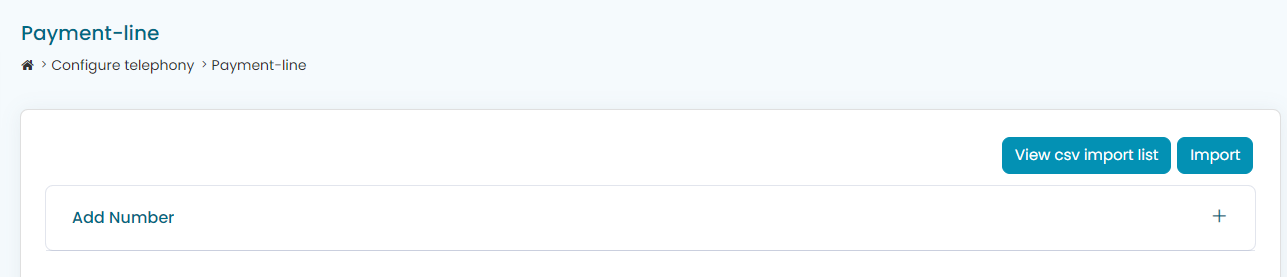
Using the pop-up that appears. First, click the 'Sample CSV' button to download the import template.
Save the template locally so you can add your telephone number list.
Open the template you saved. You can now edit the data.
5. Complete the CSV file
5. Complete the CSV file
You will see 2 sample data rows as an example
6. CSV column guide
Column headers and what they mean
Name label - This is the name you will know the number by, it is good for searching and call reports.
Country code - the international country code in the format example here 44 instead of +44 or 0044
Phone number - the telephone number you are importing in national format without a lead zero. We combine the Country code and number later to make an e.164 formatted number.
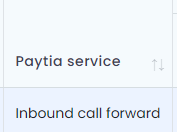
Paytia service - These are the names as they appear in the Manage number, Paytia Service column of the portal
Country code - the international country code in the format example here 44 instead of +44 or 0044
Phone number - the telephone number you are importing in national format without a lead zero. We combine the Country code and number later to make an e.164 formatted number.
Paytia service - These are the names as they appear in the Manage number, Paytia Service column of the portal
Inbound country code - the international country code, for the number a call will divert to, in the format example here 44 instead of +44 or 0044. This number is used differently depending on the Paytia service type in use. For PSTN call forward add the number calls will be forewarded on to. For SIP add the same number as column C.
Inbound phone number - This number is used differently depending on the Paytia service type in use. For PSTN call forward add the number calls will be forewarded on to. For SIP add the same number as column C.
Outbound country code - The international country code. This number is used differently depending on the Paytia service type in use. For PSTN call forward this is the trusted telephone number you will call out from.
Inbound phone number - This number is used differently depending on the Paytia service type in use. For PSTN call forward add the number calls will be forewarded on to. For SIP add the same number as column C.
Outbound country code - The international country code. This number is used differently depending on the Paytia service type in use. For PSTN call forward this is the trusted telephone number you will call out from.
Outbound phone number - This number is used differently depending on the Paytia service type in use. For PSTN call forward this is the trusted telephone number you will call out from. For SIP add the same number as column C.
7. Important note before import
7. Important note before import
Note: Make sure you delete the two text rows, you don't want those imported.
8. Save and upload your file
Save your file and go back to the paytia portal to import it.
Click the 'Choose file' button.
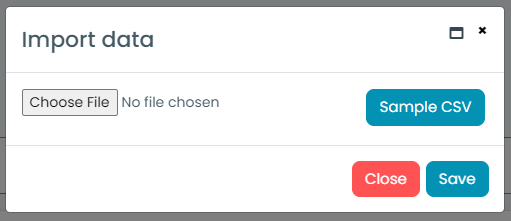
8. Save and upload your file
Save your file and go back to the paytia portal to import it.
Click the 'Choose file' button.
Select your import file and click Open

Your file is shown attached
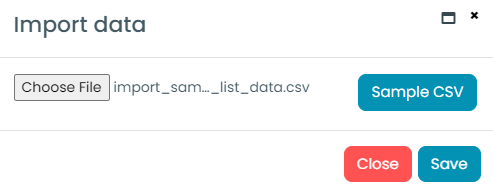
Now click the 'Save' button to import.
If anything goes wrong an error is shown. Is all is successful, the numebr will import and a success message will be shown.
Your file is shown attached
Now click the 'Save' button to import.
If anything goes wrong an error is shown. Is all is successful, the numebr will import and a success message will be shown.
Related Articles
Manage numbers list
Manage Number Import Process This guide explains how to import telephone numbers into the Paytia portal using the Manage number import tool. Index Overview Open Manage number Start the import process Download the sample CSV template Complete the CSV ...Paytia SIP translation and routing
Paytia SIP Call Control Paytia provides flexible SIP call control on a per-telephone-number basis. Each telephone number can have its own routing, number translation, number formatting and external termination rules. This enables businesses and ...How do I test what telephone number I am calling Paytia from?
How to Test the Telephone Number You Are Calling Paytia From It is important to verify the telephone number your business uses to call Paytia. This ensures it matches the trusted numbers stored in your Paytia account and is properly recognized during ...Paytia SIP services
Paytia runs a carrier-grade private bespoke SIP network core. This design allows Paytia and its customers to benefit from cutting-edge digital calling services that can be infinitely scaled, centrally managed and rapidly updated and deployed. Digital ...How do I purchase and deploy multiple Paytia numbers?
If you want to enable payments on multiple customer lines, you can purchase additional Paytia numbers and route them to different destinations in your organization. This article explains how. Why you may require multiple Paytia numbers Paytia ...